
Codex CLI on Windows: native install or WSL2
By Nicolás Pinzón Aparicio · Updated
To run Codex CLI on Windows, install it in PowerShell with powershell -ExecutionPolicy ByPass -c "irm https://chatgpt.com/codex/install.ps1 | iex" (or npm install -g @openai/codex), then run codex and sign in with ChatGPT; OpenAI recommends running it natively with its Windows sandbox, and running it inside WSL2 when your tools or projects live in Linux. Agents Keeper, a free desktop app for Codex and Claude Code sessions, also runs natively on Windows, with no WSL, since version 0.5.2 (November 13, 2026).
Codex used to be a Linux-and-macOS tool that Windows users ran in WSL. As of November 2026 it runs natively on Windows, with its own sandbox, and WSL2 is the option for Linux workflows. Here is how to set up either, with the commands from OpenAI's README and Windows docs, checked on November 12, 2026.
Native or WSL2: which to pick
| Native (PowerShell) | Inside WSL2 | |
|---|---|---|
| Install | irm https://chatgpt.com/codex/install.ps1 | iex or npm install -g @openai/codex | curl -fsSL https://chatgpt.com/codex/install.sh | sh in the WSL shell |
| Sandbox | Windows sandbox: mxc, elevated or unelevated | Linux sandbox (bubblewrap) |
| OpenAI says | The default choice | When you need Linux tooling or already work in WSL2 |
| Where your code should live | Anywhere on Windows | In your Linux home (~/code), not /mnt/c |
Windows 11 is OpenAI's recommended baseline; an up-to-date Windows 10 is best effort, and version 1809 or newer is required. Codex is included in every ChatGPT plan, Free included.
Install Codex natively in PowerShell
- Open PowerShell and run
powershell -ExecutionPolicy ByPass -c "irm https://chatgpt.com/codex/install.ps1 | iex". If you already use Node.js,npm install -g @openai/codexworks too. - Open your project folder and run
codex. - Choose Sign in with ChatGPT, or use an OpenAI API key.
Reopen the terminal if codex isn't found right after installing, so the new PATH is picked up.
The Windows sandbox modes
Natively, Codex runs its commands in a Windows sandbox. OpenAI's docs describe three implementations:
- mxc
- Recommended on compatible devices: native process isolation with no administrator setup, extra Windows accounts or firewall rules. It needs Windows 11 24H2 or 25H2 with the MXC capabilities Microsoft is rolling out. Turn it on with
prefer_mxc = trueunder[features]inconfig.toml. - elevated
- The fallback when MXC isn't available. Needs a one-time setup approved by an administrator; commands then run as lower-privilege sandbox users with filesystem and firewall limits. Set
sandbox = "elevated"under[windows]. - unelevated
- A legacy fallback with a restricted token from your own user: weaker network isolation and no denied read paths. Set
sandbox = "unelevated".
With MXC, child processes stop when the foreground command exits, so a dev server Codex starts in the background may not keep running. Full access mode isn't limited to your project folder and can cause data loss.
Run Codex inside WSL2
- In an administrator PowerShell, run
wsl --install(Ubuntu is the usual choice) and restart if Windows asks. - Open the Linux shell with
wsl. - Install Codex there:
curl -fsSL https://chatgpt.com/codex/install.sh | sh, then runcodexand sign in. - Keep your repositories in your Linux home, for example
mkdir -p ~/code && cd ~/code, thengit clonethere.
Projects under /mnt/c/... work but can be slower, with more symlink and permission problems. From Windows Explorer, your Linux files are under \\wsl$\Ubuntu\home\<user>. WSL1 isn't supported since Codex 0.115, when the Linux sandbox moved to bubblewrap: use WSL2.
Codex and Claude Code in one Windows app: Agents Keeper
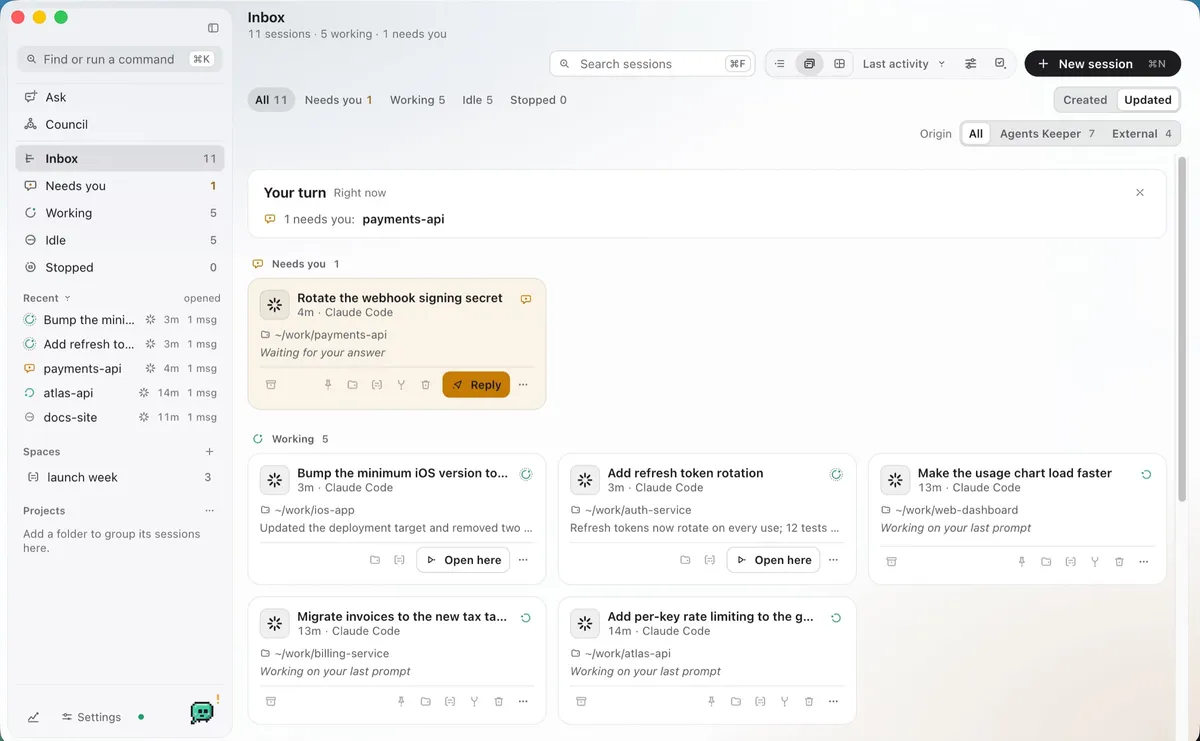
Agents Keeper is a free app for Windows 10 (version 2004 or later) and 11 that runs natively, with no WSL, since version 0.5.2 (November 13, 2026). It uses the Codex and Claude Code installed on Windows; on first launch it checks for both and installs nothing until you say so, and Setup offers to install whichever is missing. The older WSL2 version stays available as a legacy download.
- One list
- Every Codex and Claude Code session in one Inbox, grouped by status, with the ones that need you on top and one notification when an agent needs you or finishes.
- Kept running
- Its background service runs natively on Windows and starts when you sign in, so your agents keep working when the app is closed.
- Both limits
- The Usage page shows your 5-hour and weekly windows with the reset time, and an approximate cost across Claude and Codex.
More in Claude Code and Codex on Windows and Agents Keeper for Codex users. Installing Claude Code itself: Claude Code on Windows, with or without WSL.
Questions about Codex CLI on Windows
- Does Codex CLI work on Windows without WSL?
- Yes. As of November 2026, OpenAI's docs say Codex runs natively in PowerShell with a Windows sandbox, and recommend that by default. WSL2 is for Linux tooling or projects that already live in WSL.
- How do I install Codex CLI on Windows?
- In PowerShell:
powershell -ExecutionPolicy ByPass -c "irm https://chatgpt.com/codex/install.ps1 | iex", ornpm install -g @openai/codex. Then runcodexand sign in with ChatGPT. - Does Codex work in WSL1?
- No. Codex supported WSL1 through version 0.114; from 0.115 its Linux sandbox uses bubblewrap, which needs WSL2.
- Is Codex free on Windows?
- Codex is included in every ChatGPT plan, the Free plan too, per OpenAI's pricing page, with usage limits that depend on the plan.
- Is Agents Keeper free?
- Yes. Agents Keeper is a free beta with no account. Codex and Claude Code use your own ChatGPT or Claude plan, or an API key.
Sources
Checked on